VerseDB tracks which issues you've read and calculates completion per series. Reading tracking is completely separate from your collection — you can mark issues as read without owning them.
Marking Issues#
Every issue page has a read toggle in the action bar (vertical icon strip on the left). Click the book icon to toggle between "Mark as Read" and "Mark as Unread."
Your Reading Progress Page#
Open My Library → Reading to see every series where you've read at least one issue. The page shows:
- A completion donut chart for your overall reading percentage
- Totals — issues read, total issues across tracked series, number of series
- Top publishers with progress bars
- The series list with per-series completion
Narrow the list with the controls above it:
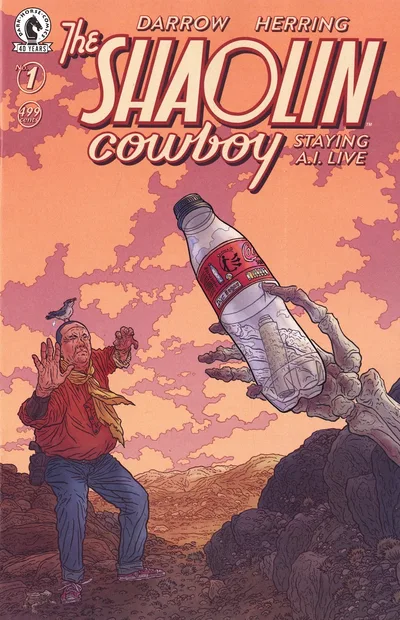
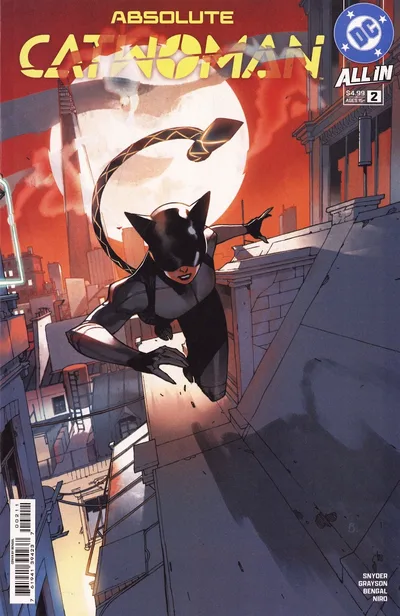
Switch between grid (covers with progress bars) and list (table with year, type, publisher, progress) via the view toggle.
Series Reading Manager#
Click any series on the Reading page to open the Series Reading Manager. It shows every issue in the series with a read badge on completed ones, plus a progress bar (e.g., "12 of 45 issues read"). Sort issues by issue number or release date.
Clicking an issue card opens the full issue page where you can toggle read status, add it to your collection, or view details.
Bulk Read Actions (PRO)#
PRO members can mark every issue in a series as read or unread at once. From the Series Reading Manager, open the Bulk Actions dropdown and choose Mark All as Read or Mark All as Unread. Processing runs in the background; refresh to see the updated state.
Marking all as unread removes your read history for every issue in that series and can't be undone.
Free users see the Bulk Actions button with a PRO badge — clicking it opens the subscription page.
Privacy#
Reading progress is private by default. Flip the visibility toggle in the top-right of the Reading page to make it public — visible on your profile under the Reading tab. Public reading lives at @yourusername/reading.
Where Reading Shows Up#
Beyond the dedicated Reading page, your status appears on individual issue pages (the action bar toggle), on series pages (a "Reading Series" indicator if you've read any), and on your public profile when your reading list is public.